
10
Simple Steps
6 min
Avg. Time
100%
Free
TM SIM registration
Legal Requirement
Why Smart SIM Registration Is Now
Mandatory
Here’s the thing, this isn’t just a Smart rule. It’s Philippine law.
Here’s the thing, this isn’t just a Smart rule. It’s Philippine law. The SIM Registration Act was passed to protect people. Think about it: scammers used to buy anonymous SIMs and run phishing schemes, fake OTPs, all kinds of fraud. Registration ties every SIM to a real identity, which makes it a lot harder.
Smart Communications has over 55.2 million subscribers. That’s a massive number of people who need to comply. And if you don’t? The penalties are real:
I know someone who lost a number they’d had for 11 years because they kept putting it off. Don’t be that person.
Preparation
What You Need Before You Start
Before you open the portal, get these things ready.
Active Mobile Number
Your active 10-digit Smart mobile number (the one you’re registering)
Valid Government ID
A clear photo of your ID, not expired. Best choice: Philippine National ID (PhilSys).
Clear Selfie
Good lighting, no hat, face fully visible. The system scans your face and compares it to the ID photo.
Home Address
Province, municipality, barangay. Postal code fills automatically once you select the barangay.
Optional Contact
Alternate contact number and email address for backup verification.
Stable Wi-Fi
Alternate contact number and email address for backup verification.
Documents
Accepted IDs for Smart SIM Registration
The portal accepts a pretty wide range of IDs.
The portal accepts a pretty wide range of IDs. But not all are created equal, some process faster than others.
Best choice: Philippine National ID (PhilSys card). It auto-fills more of your details and gets processed the quickest.
Other accepted IDs:
One thing that trips people up is that expired IDs get rejected, even if the ID number is technically still valid. The system checks the expiry date during the photo scan. Use a current, valid ID, and you’ll save yourself a headache.
Step by Step
How to Register Your Smart SIM
Online
There are two ways to register a Smart SIM: via the official portal or through the GigaLife/Smart app.
1 Smart SIM registration via Portal
Follow these exact steps to complete your Smart SIM registration online without any hassle.
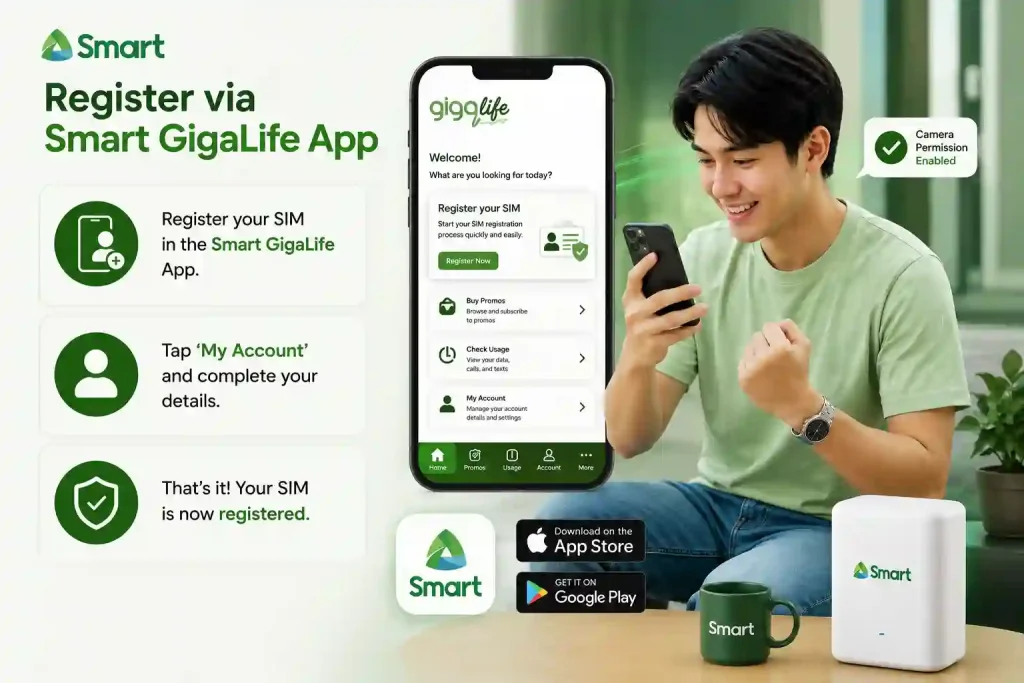
2 Registering via the Smart GigaLife App
Prefer doing everything through your phone? You can also start the smart SIM registration online process through the GigaLife App.
Download it from the App Store or Google Play, open it, and tap “Register your SIM” on the home screen. It redirects you to the same browser portal, the steps from Step 2 onward are identical.
One thing to check first: grant camera permission to the app before you start. If the app can’t access your camera, the photo upload will silently fail without telling you why. Go to your phone settings, find GigaLife, and make sure camera access is on. When I first tested this on Android, I missed this step and spent 10 minutes wondering why the upload kept freezing. Camera permission was the fix.
Smart SIM Registration for Postpaid Users
Good news, if you’re on a postpaid plan, you don’t need the portal at all.
Just text YES to 5858 from your Smart postpaid number. That’s it. You’ll get a confirmation SMS within minutes. No ID upload, no selfie, no form. Smart already has your identity on file from when you signed up for your plan.
Smart Registration for Foreign
Nationals and Tourists
Visiting the Philippines? You’re not exempt. All tourist and foreign SIMs require registration, here’s what you need to know.
The registration steps are identical to the standard prepaid process described below. Go to simreg.smart.com.ph, follow the steps, and upload your documents instead of a local ID.
Required Documents, Tourists
- Valid passport (biographical page)
- Proof of address in the Philippines (hotel booking confirmation works perfectly, it’s the easiest document to get quickly)
- Return ticket showing your departure date
Required Documents, Other Foreign Nationals
- Valid passport
- Proof of local address in the Philippines
- One of the following:
- ACR I-Card (Alien Certificate of Registration, issued by the Philippine Bureau of Immigration to foreign residents)
- Alien Employment Permit issued by DOLE (Department of Labor and Employment)
- Student ID + current school enrollment form
Verification
How to Check Your Smart SIM
Registration Status
Registered, but not sure if it went through?
Registered, but not sure if it went through? There are two ways to check.
Method 1: Via the Registration Portal
Go to simreg.smart.com.ph, enter your number, and verify with an OTP. Here’s what each status message actually means:
|
Message |
What It Means |
|---|---|
|
Your mobile number is already registered. |
You’re done. All good. |
|
Your application is now endorsed to our Smart validation officer. |
Still processing, wait 3 to 5 business days |
|
Error or blank page |
Try again on a different browser or contact support |
Method 2: Via the GigaLife App
Log in to the GigaLife App with your registered number. Look for a “Registered” badge beside your mobile number on the home screen.
If the badge isn’t there yet but you completed the process, give it 24 to 72 hours. The app and the portal don’t always sync instantly, that’s normal.
How to Update Your Smart SIM Registration Details
Life changes. You move, you get married, your ID expires. When any of that happens, update your registration details, don’t leave them as is.
When to update:
Here’s why this matters more than people realize: a mismatch between your registered details and your current ID can block SIM recovery at a Smart store. In a real situation, someone tried to get their lost SIM replaced but was turned away because their registered address didn’t match the address on their ID. Don’t let that happen to you.
How to update: Visit Smart’s website, log in with your registered number, and go to the “Update SIM Registration Information” section. Fill in the corrected details and submit. You’ll get an SMS confirmation when it’s done.
For name changes or more complex updates, it’s safer to visit a Smart store in person and bring the same ID you used during your original registration.
Support
Registration Not
Working? Fix Common Problems
This is the part most guides skip, and it’s where people get stuck. Let’s fix that.
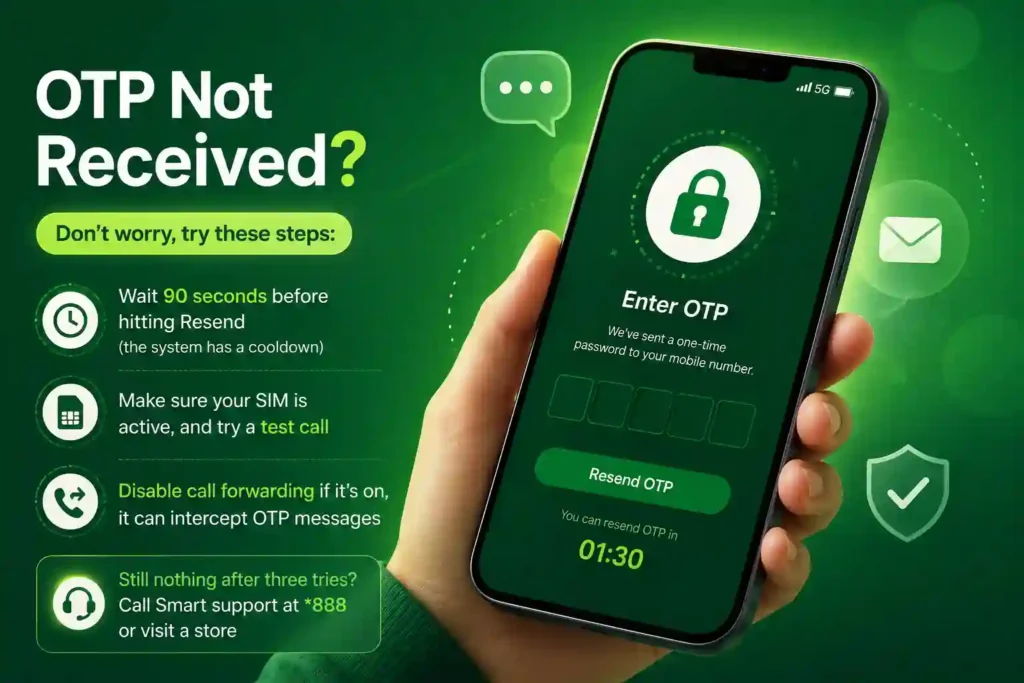
OTP Not Received
- Wait 90 seconds before hitting Resend (the system has a cooldown)
- Make sure your SIM is active, and try a test call
- Disable call forwarding if it’s on, it can intercept OTP messages
- Still nothing after three tries? Call Smart support at *888 or visit a store
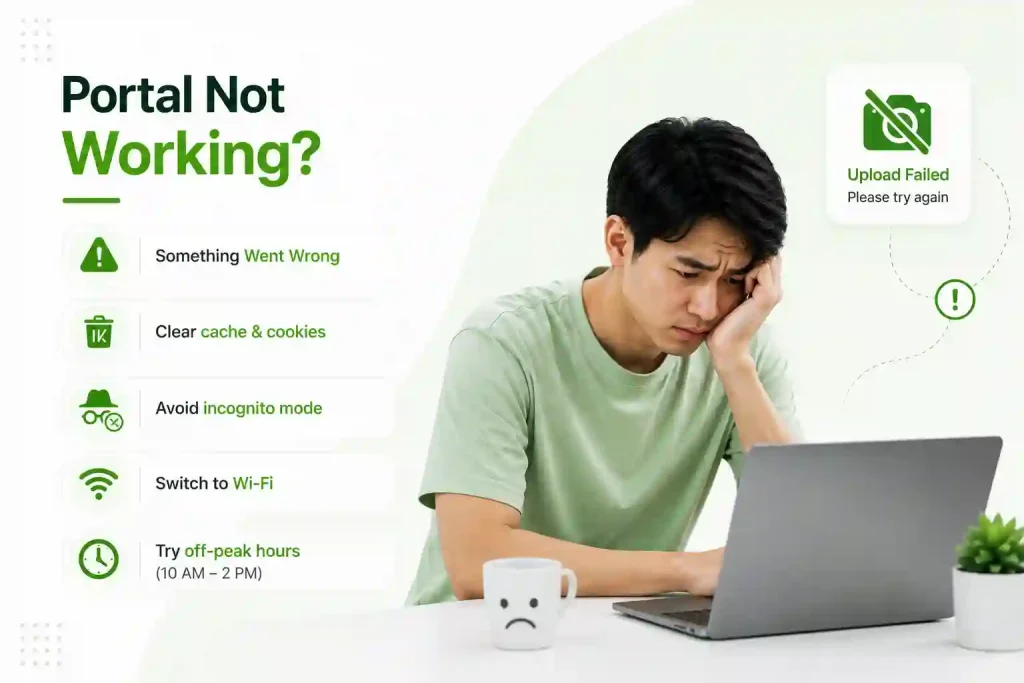
“Invalid Request” or “Something Went Wrong” Error
- Clear your browser’s cache and cookies, then restart the session
- Don’t use incognito mode, the portal needs session cookies to work
- Switch from mobile data to Wi-Fi
- Try during off-peak hours, the portal gets slow between 10 AM and 2 PM on weekdays
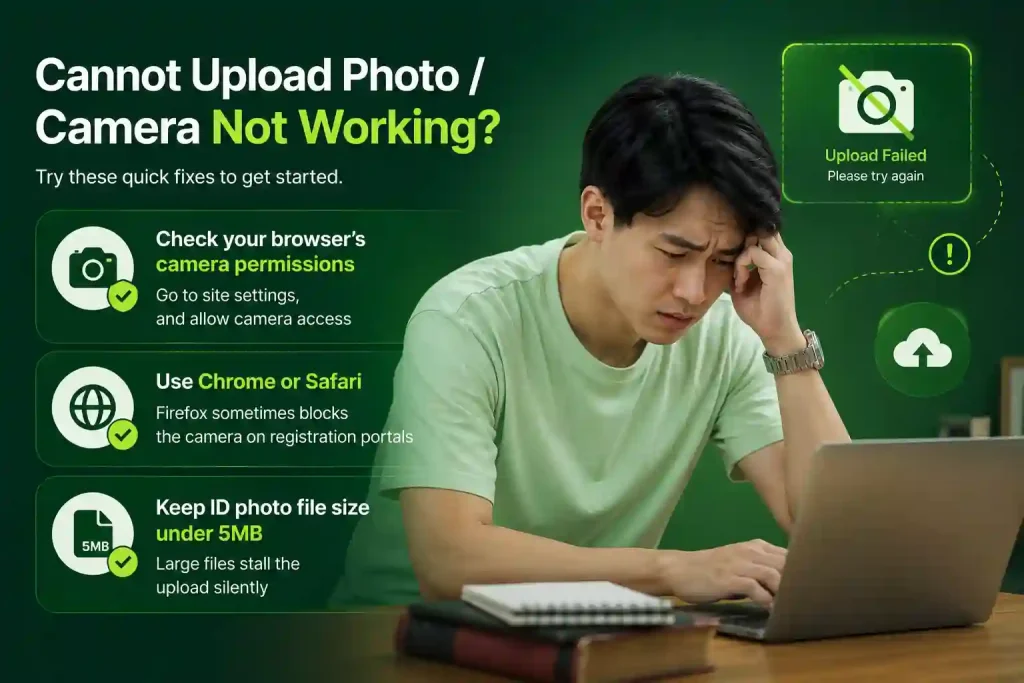
Cannot Upload Photo / Camera Not Working
- Check your browser’s camera permissions, go to site settings, and allow camera access
- Use Chrome or Safari, Firefox sometimes blocks the camera on registration portals
- Keep ID photo file size under 5MB, large files stall the upload silently
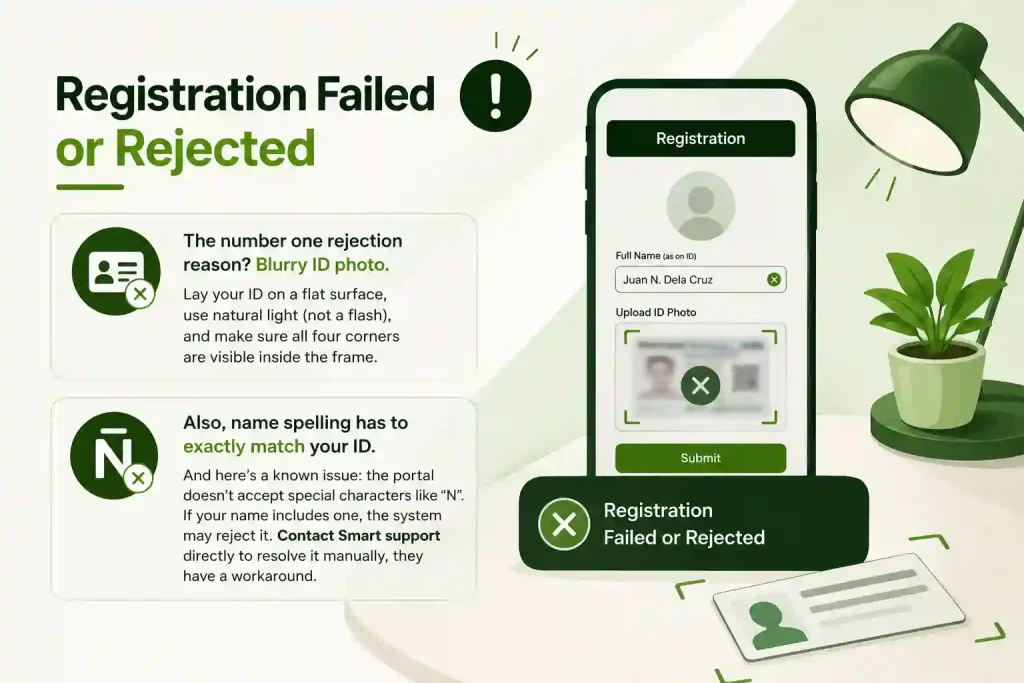
Registration Failed or Rejected
The number one rejection reason? Blurry ID photo. Lay your ID on a flat surface, use natural light (not a flash), and make sure all four corners are visible inside the frame.
Also, name spelling has to exactly match your ID. And here’s a known issue: the portal doesn’t accept special characters like “N”. If your name includes one, the system may reject it. Contact Smart support directly to resolve it manually, they have a workaround.
Wrapping Up
Honestly? Smart SIM registration is one of those things that sounds more intimidating than it actually is. Ten minutes, a valid ID, a decent selfie, and you’re done. The portal isn’t perfect (that N bug is still a thing, and the OTP cooldown trips people up constantly), but once you know what to expect, it’s smooth.
Go to simreg.smart.com.ph right now and get it sorted. Your number is worth protecting. Don’t wait until Smart suspends your line to take it seriously.
Already registered? Check your status via the GigaLife App anyway. Better to know for sure than to find out the hard way.
FAQ
Frequently Asked Questions
Quick answers to the most common questions about Smart SIM registration.